Convoship migrates the bot you already have — or a flow you sketch — into a runnable AI agent, then gives you a studio to design, test, govern, and deploy it. Use Assistants for scripted intent + flow bots, Agents for LLM reasoning over tools, and Workflows to chain them together.
What you build
An Assistant is a scripted bot: intents, sub-flows, entities, tools, and Channels deployment tokens (cdp_*). An AI Agent is a separate agentic runtime with mission, tasks, tool handlers, publish/publicToken embed, and guardrails — see /docs/agent-vs-assistant and /docs/agentic-ai.
Studio layout
- Workspace — top-level container for Assistants, Agents, members, secrets, and audit logs.
- Assistants dashboard (/app/assistants) — scripted bots with intents and flows.
- Agents dashboard (/app/agents) — agentic bots with tasks, tools, and playground.
- Assistant editor — left rail with Build, Operate, and Move sections while editing one scripted Assistant.
- Simulator — floating chat on every Assistant page to test conversations live.
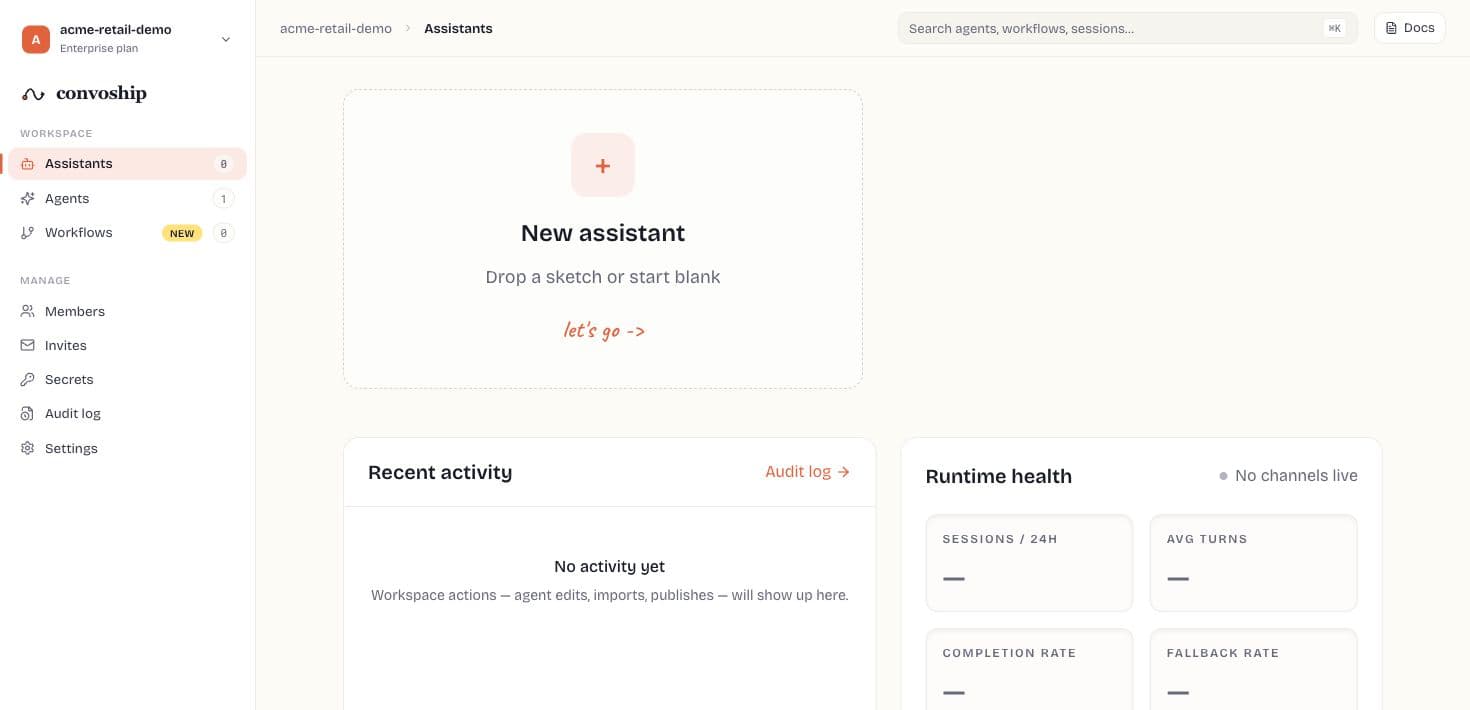
Typical workflow
- Create a scripted Assistant from a blank canvas or imported Draw.io / PDF / Word / image source.
- Define intents and build sub-flows on the canvas.
- Add entities and tools as needed.
- Test utterances and simulate full sessions.
- Publish a version and deploy via Channels (web widget).
Implementation path
- Choose the bot type: scripted Assistant for deterministic journeys, AI Agent for LLM reasoning over tools, or Workflow when you need orchestration.
- Create the draft in Studio and keep all names user-readable because node, intent, task, and tool names appear in traces.
- Wire data dependencies before publish: entities, workspace secrets, HTTP tools, knowledge sources, and channel origins.
- Test in the Studio simulator or Playground, then inspect History, trace output, and eval results before exposing the bot publicly.
- Publish a version, deploy through Channels or publicToken embed, and monitor Analytics plus Change log or Audit log after launch.
Feature map
Every major studio surface has a dedicated doc page. Use the left sidebar to jump directly, or follow the table below.
| Studio area | Doc page |
|---|---|
| Workspace dashboard | Workspace |
| Members & roles | Members |
| Secrets vault | Secrets |
| Workspace audit log | Workspace audit log |
| Shared HTTP/agent tools | Workspace tools |
| Plan, MFA, sessions | Workspace settings |
| Assistants dashboard | Assistants dashboard |
| New assistant wizard (3 steps) | New assistant wizard |
| Import review gate | Import review |
| Multi-source import | Import sources |
| Assistant settings | Assistant settings |
| Flow canvas & node repair | Flow builder |
| Intents & sub-flows | Intents |
| Entities | Entities |
| Tools (assistant scope) | Tools |
| Small talk | Small talk |
| Welcome / fallback / no-input | Events |
| Knowledge (RAG) | Knowledge |
| Python script nodes | Python scripts |
| Runtime & intent matching | Runtime engine |
| Simulator & utterance test | Test & simulator |
| Publish release | Publish |
| Version history & restore | Versions |
| Metrics & funnels | Analytics |
| Web widget & providers | Channels & deploy |
| Embed SDK API | Embed SDK |
| Session transcripts | History |
| Design-time audit | Change log |
| Agent vs Assistant choice | Agent vs Assistant |
| AI Agents dashboard | Agentic AI overview |
| New Agent wizard (4 steps) | New Agent wizard |
| Playground, convos, evals | Playground & evals |
| Workflows landing | Workflows overview |
| Chain editor | Chain editor |
| Workflow flow canvas | Workflow canvas |
| JSON / Draw.io export | Export |
| REST API surface | API reference (Developer) |
| Embed SDK API | Embed SDK (Developer) |
Tip
Use Change log to see who edited intents and flow. Use Versions to export or restore a past release.